Monetization in Adfox
About monetization
Monetization is a service that allows site owners to sell traffic on their platforms through the Yandex Advertising Network using Real Time Bidding (RTB) technology.
Owners of sites that sell traffic using Adfox Monetization enjoy a wide range of external monetization opportunities: DSP banners, Yandex Direct ads, and Yandex display ads take part in a single RTB auction.
The monetization service is connected to the Yandex Advertising Network and is fully integrated with Adfox, which allows site owners to use all available media inventory and increase ad revenue with a single technology.
Monetization supports multiple business models:
- Managing own sales
- Monetization by Yandex
- External monetization
- Own promotion
Overview of the Monetization section and tab navigation
In Monetization, you can configure integration with ad networks and manage inventory monetization at all levels — from the whole account to a specific placement.
The section can be accessed from the main menu and contains the following tabs:
- Parameters: Global account settings (Yandex Advertising Network, external monetization platforms).
- Placements: Manage monetization on placements.
- HB configurator: Set up Header Bidding.
- Google: Manage Google monetization.
Placements tab
This tab provides information about your placements:
|
Column |
Description |
|
Yandex Advertising Network |
Linked Yandex Advertising Network ad unit. |
|
Yandex Advertising Network status |
Ad unit statuses from Yandex Advertising Network: connected, not connected, not running. You won't see statuses that prevent you from creating an ad unit: deleted, rejected, under moderation, blocked. |
|
Header Bidding |
Connected Yandex Header Bidding monetization platforms. If the list is long, you can expand it by clicking +more. |
|
|
Linked Google Ad Manager preset. |
|
Site, Section |
Context of banner placement in the inventory hierarchy. |
The columns on the right show the same parameters as in the Inventory section in the placements list (position, banner type, ad requests, and others). To reorder or hide columns, click in the right corner of the page.
Filters
To find the placement you need more quickly, you can apply filters — click on . The following filters are available:
- Ad formats.
- Sites and sections.
- Banner types.
- Position.
- Ad requests.
- Monetization type: Yandex Advertising Network, Header Bidding, Google, or none.
- Ad monetization platforms.
- Yandex Advertising Network ad units.
Context menu
The menu opens when you click the  icon next to a placement name. The list of items depends on the monetization type:
- Yandex Advertising Network: Connect or edit an ad unit, stop impressions, or view a report.
- Header Bidding monetization platforms: Connect or edit an ad unit, or view a report.
- Google: Edit an ad unit or go to the report.
- The Delete block option is always available, regardless of the monetization type.
When editing, a new modal window opens. Header Bidding monetization platforms are grouped: Yandex Header Bidding always go first, followed by third-party platforms. Each monetizer has supported formats specified. To delete a monetization platform, clicking the X icon. You can also copy all names via the context menu.
Once you're done editing, remember to save your changes.
Managing monetization across multiple placements
You can manage your placements right from the list using bulk actions. Select multiple placements to manage their monetization:
-
To view only certain placements, click and apply filters by ad format, monetization type, and other parameters.
Available filters
- Ad formats.
- Sites and sections.
- Banner types.
- Position.
- Ad requests.
- Monetization type: Yandex Advertising Network, Header Bidding, Google, or none.
- Ad monetization platforms.
- Yandex Advertising Network ad units.
-
To access bulk actions, check the boxes to the left of the placement names.
-
Choose the monetization type you'd like to manage across the selected placements:
Yandex Advertising NetworkHeader BiddingGoogle-
Click Manage YAN.
Warning
This button is active only when all selected placements are from the same site and use the same ad format.
-
Your available actions depend on your current ad units:
- If your placements don't have Yandex Advertising Network ad units yet, you can add them:
- Select a site for ad units. It'll be pulled from Yandex Advertising Network using your linked username, or you can add a new one.
- Select an ad unit type. All types are supported except Rewarded, In-Image, Prebid, and Feed.
- If you've already connected the ad units, you can replace, pause, or delete them.
- If your placements don't have Yandex Advertising Network ad units yet, you can add them:
-
Click Apply.
- Click Manage HB.
- Your available actions depend on whether you've enabled monetization platforms for your placements:
- If you haven't enabled any monetization platforms yet, select them from the list. Monetization platforms appear in the list only after you connect them in your monetization settings.
- If you've already enabled some monetization platforms, you can replace or pause them.
- Click Apply.
- Click Manage Google.
- Your available actions depend on whether you've enabled presets for your placements:
- If you haven't enabled Google monetization for your placements yet, add a preset from the list. Presets only appear in the list after you create them in your monetization settings. To create a preset, go to Monetization → Google.
- If you've already enabled presets, you can replace, pause, or delete them.
- Click Apply.
-
Bulk action modes
Five modes of bulk actions are supported for each monetization type:
-
Replace: Replace the monetization type for selected placements. Use this mode to disable existing YAN ad units, Google presets, or Header Bidding monetization platforms and replace them with other ad units. This mode applies only to placements where monetization is enabled.
-
Add: Enable the selected monetization type only for placements where it's not enabled yet. This won't affect placements where monetization is already enabled. How this mode works depends on the monetization type:
- YAN and Google: New YAN ad units or Google presets are only added to placements where this type of monetization isn't enabled.
- Header Bidding: New monetization platforms are added to the existing set of platforms on each selected placement.
Note
To enable Google presets or Header Bidding monetization platforms by selecting them in the list, you need to create them under Monetization on the corresponding tab.
-
Stop: Pause impressions for the selected monetization type on your placements. How this mode works depends on the monetization type:
-
YAN and Google: Monetization will be disabled. The YAN ad unit or Google preset will no longer be used, but the placement and the ad unit or preset are still connected. This lets you re-enable monetization on these placements at any time without having to create and connect the ad units again.
Tip
Use this mode if you want to temporarily pause impressions and plan to resume monetization on these placements later. You can do this using the Restore mode (see details below).
-
Header Bidding: Monetization platforms will be completely disabled for selected placements, and the platforms and placements will no longer be connected. To use Header Bidding on these placements later, you'll need to connect the monetization platforms again.
Warning
Disabling Header Bidding doesn't just pause impressions. It completely disables them. To re-enable monetization platforms for your placements, select them from the list. Note that monetization platforms only appear in the list after you connect them under Monetization → Parameters.
-
-
Restore: Resume impressions for previously paused YAN ad units and Google presets on the selected placements. Even when you pause them, the ad units or Google presets are still connected to your placements, so you won't have to create and connect them again.
-
Delete: Completely remove YAN ad units or Google presets from selected placements. The ad units will no longer be connected to your placements, and you won't be able to resume impressions. You can only resume monetization on these placements after you connect the ad units again, just like when you disable Header Bidding.
Parameters tab
The tab contains account-level monetization settings:
- Connecting the Yandex Advertising Network and setting up formats for Yandex Advertising Network monetization. After adding an ad format in the Yandex Advertising Network, you need to open the placement and manually set an ad unit — this doesn't happen automatically. For more information, see Monetization with the Yandex Advertising Network.
- Connecting external monetization platforms. To learn more, see Setting up an Adfox account for monetization with Header Bidding.
- Connecting Adfox Header Bidding monetization platforms. To learn more, see Setting up an Adfox account for monetization with Header Bidding.
How banners are served
The general structure of the banner serving process looks as follows:
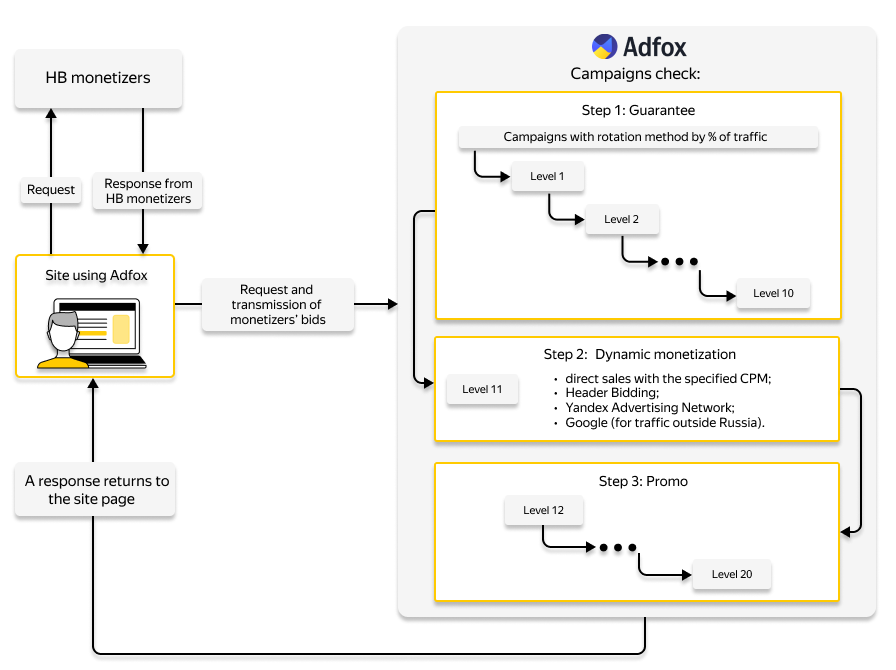
Let's say there's a Dynamic Monetization ad campaign in a placement.
A user visits the site page where an asynchronous Adfox ad tag is embedded. At this point, a banner request is sent to the Adfox server.
-
First, a banner to be displayed is selected among Guarantee campaigns (levels 1–10).
-
If no appropriate banner is found, the right to display banners is transferred to a Dynamic Monetization campaign (level 11). At this level, the Yandex Advertising Network and other monetizers enabled using Header Bidding technology can participate in an auction.
-
If a Yandex Advertising Network campaign wins the auction, bidding for this impression takes place inside the Yandex Advertising Network. Depending on the results, there are two possible options:
- If a banner is selected for display in the Yandex Advertising Network, it is sent to the page opened by the user.
- If no banner is found in the Yandex Advertising Network, the banner to display is selected among other Dynamic Monetization campaigns or the campaign level is changed to Promo.
As a result, placement traffic is not lost and is monetized in any case.
Advantages of using Monetization
-
Expanding opportunities to increase revenue:
-
When you enable Yandex ads, it provides ad budgets not only from DSPs present on the market but also from advertisers who place display ads in Yandex and contextual ads in Yandex Direct.
-
Reducing traffic losses by consistently using multiple monetization channels. Before the integration, there were two types of strategies:
-
Focus on own sales, with remaining traffic handled by the Yandex Advertising Network (which is prohibited by the rules).
-
Focus on the Yandex Advertising Network, with remaining traffic handled by the tag of own placements.
In both cases, the impression would be lost after running through the second tag and the absence of matching ads.
In the new system, when the Yandex Advertising Network is unable to show the banner to the user, the request is passed back to Adfox, and a banner is selected from campaigns with the next priority level, ensuring no traffic loss.
-
-
Optimization of the revenue from various monetization channels by setting the priority depending on the CPM sold or the Bid Floor set in the channel, considering the fulfillment of obligations for the volume and frequency of own sales.
-
Consultations from both Yandex Advertising Network and Adfox specialists on optimizing the site structure and using ad placement codes.
-
-
Reducing the risk of dumping for major commercial advertisers:
-
Setting up the advertisers' catalog helps manage platform availability to ban ads from unwanted market segments down to a specific brand.
-
Option to filter out unwanted ads:
- Block by brand.
- Block by ad category.
- Block by domain.
-
Contact support
At the placement and login level.
Determines the position and formats of ads on a site page. To learn more about the types, see Help for the Yandex Advertising Network.