How to copy a message from the error console
If a problem occurs when you're using the website, the browser console can help to identify the cause. Copy the message from the error console and send it to support.
Yandex Browser
-
To open the error console, use the keyboard shortcut Ctrl + Shift + J (or ⌥ + ⌘+ J on macOS).
Other methods
- Go to → Advanced → JavaScript console.
- Right-click anywhere on the page, select Inspect element and go to the Console tab.
-
To the right of the Filter box, open the Default levels list and deselect all options except Errors.
-
Refresh the page or repeat the actions that lead to the error.
-
If the Console tab shows error messages, expand the window to full screen and take a screenshot of the contents.
If you need to scroll down to show all relevant information, take multiple screenshots.
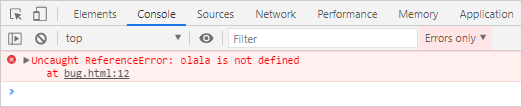
To get more information, take a screenshot of the contents of the Network tab.
Safari
-
To open the error console, go to Safari → Preferences → Advanced and enable the Show Develop menu in menu bar option.
-
To open the error console, use the keyboard shortcut ⌥ + ⌘ + C.
Other methods
- In the menu, select Develop → Show JavaScript Console.
- Right-click anywhere on the page, select Inspect Element.
-
Go to the Console tab and turn on the Errors filter. Filter names may be hidden if the window is narrow: expand the window to see them.
-
Refresh the page or repeat the actions that lead to the error.
-
If the Console tab shows error messages, expand the window to full screen and take a screenshot of the contents.
If you need to scroll down to show all relevant information, take multiple screenshots.
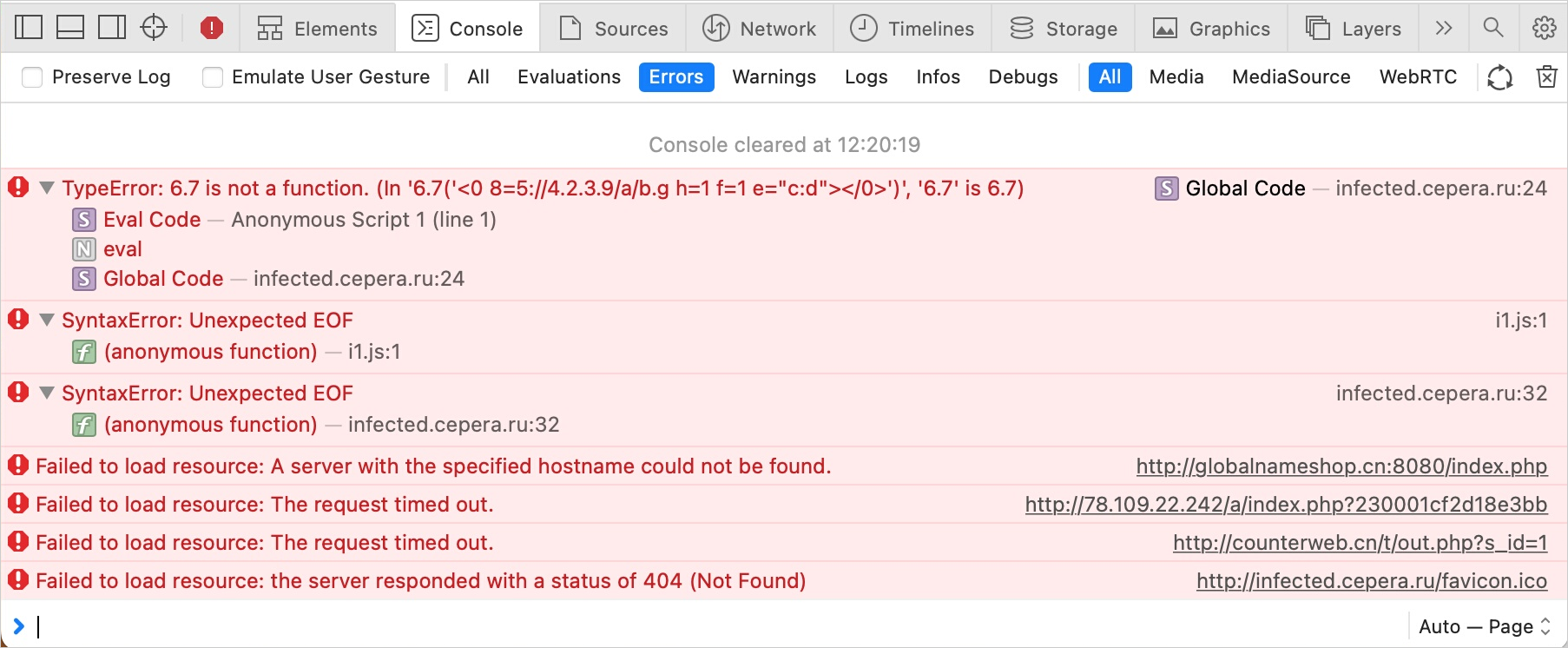
To get more information, take a screenshot of the contents in the Network tab.
Google Chrome
-
To open the error console, use the keyboard shortcut Ctrl + Shift + J.
Another method
Go to → More tools → Developer tools and open the Console tab.
-
To the right of the Filter box, open the Default levels list and deselect all options except Errors.
-
Refresh the page or repeat the actions that lead to the error.
-
If the Console tab shows error messages, expand the window to full screen and take a screenshot of the contents.
If you need to scroll down to show all relevant information, take multiple screenshots.
To get more information, take a screenshot of the contents of the Network tab.
Opera
-
To open the error console, use the keyboard shortcut Ctrl + Shift + J.
Another method
In the upper-left corner, click Opera, select Developer → Developer tools, and go to the Console tab.
-
To the right of the Filter box, open the Default levels list and deselect all options except Errors.
-
Refresh the page or repeat the actions that lead to the error.
-
If the Console tab shows error messages, expand the window to full screen and take a screenshot of the contents.
If you need to scroll down to show all relevant information, take multiple screenshots.
To get more information, take a screenshot of the contents of the Network tab.
Mozilla Firefox
-
To open the error console, use the keyboard shortcut Ctrl + Shift + J.
Other methods
- Go to → More Tools → Developer Tools.
- Right-click anywhere on the page, select Inspect and go to the Console tab.
-
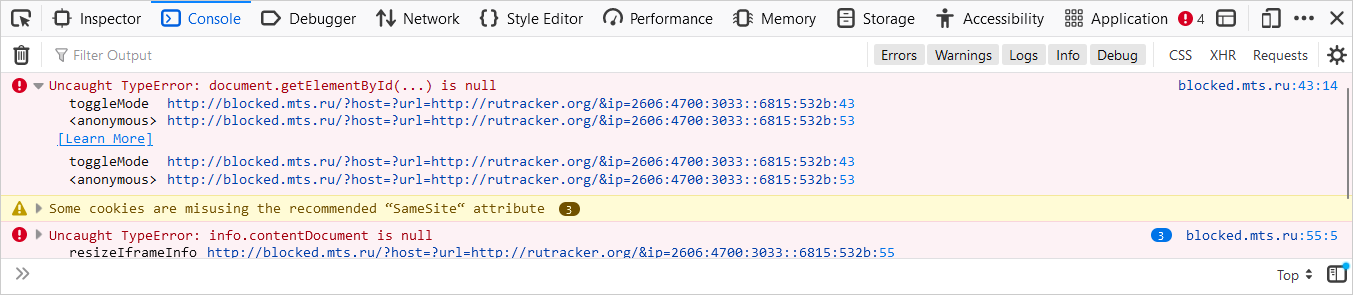
Make sure that only Errors are selected in the list of filters (Warnings, Logs, Info, Debug, CSS, XHR, and Requests should be disabled). To check, click the name of each filter. If there's no blue line below the filter, it's turned off.
-
Refresh the page or repeat the actions that lead to the error.
-
If the Console tab shows error messages, expand the window to full screen and take a screenshot of the contents.
If you need to scroll down to show all relevant information, take multiple screenshots.
Microsoft Edge
-
To open the error console, use the keyboard shortcut Ctrl + Shift + J.
Other methods
- Go to → More Tools → Developer Tools.
- Right-click anywhere on the page, select Inspect, and go to the Console tab.
-
To the right of the Filter box, open the Default levels list and deselect all options except Errors.
-
Refresh the page or repeat the actions that lead to the error.
-
If the Console tab shows error messages, expand the window to full screen and take a screenshot of the contents.
If you need to scroll down to show all relevant information, take multiple screenshots.
To get more information, take a screenshot of the contents of the Network tab.