Interface guide
You can review statistics, make data-based decisions, and make changes immediately on the campaign page.
In the mobile view of the campaign list, only basic indicators are displayed, depending on the campaign type and strategy. You can view detailed statistics on the campaign page. Selecting a campaign opens the desktop statistics version.
Quick actions
How to create a campaign
You can create a campaign in one of the following ways:
- In the side menu, click Add → Campaign.
- In the menu on the left, select Campaigns. On the page with the campaign list, click Add campaign.
How to submit for moderation, launch, pause, or disable a campaign
Next to the campaign name, click  and select the desired action: submit for moderation, start (activate), stop (disable), delete, archive, unarchive, export to XLS/XLSX.
You can pause the campaign in one of the following ways:
- Stop the campaign and restart it manually when needed.
- Stop the campaign, set a start date, then launch it.
How to stop a campaign launched with Quick start
You can only disable or pause a campaign yourself one month after launch. Until then, the Stop button won't appear on the campaign page. If you want to stop the campaign earlier, please contact support.
How to find the “Tools” tab
In the side menu, click Tools and select the tool you need.
Basic elements
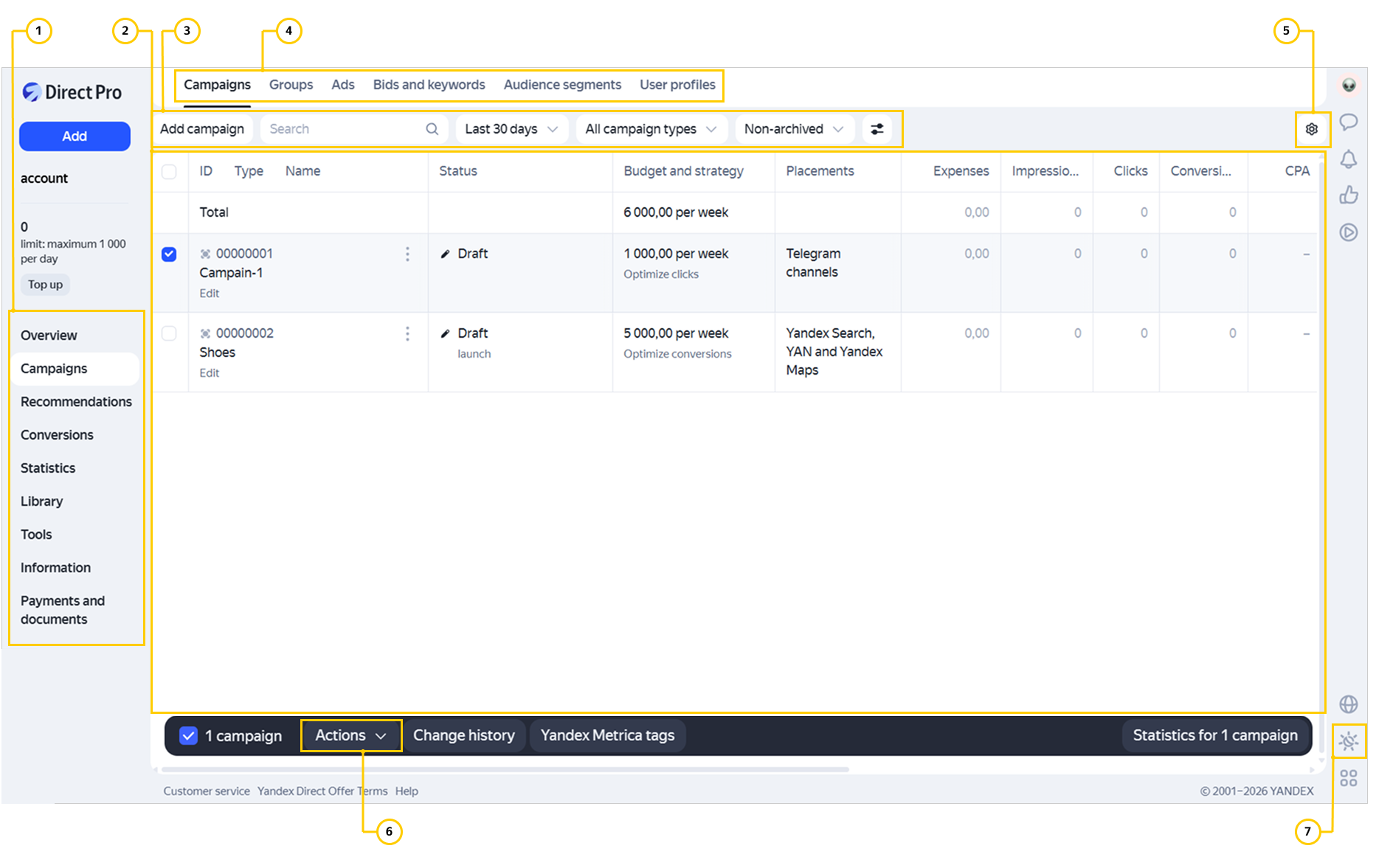
In the new interface, all data for your campaigns, groups, and ads is shown in the same window. See the main elements below.
-
Menu
Quick access to statistics, information about representatives, all tools, and additional materials for campaigns in the library.
-
Campaign data
All the necessary and important indicators are shown on the same page.
-
Search and filter
You can quickly find all ads with a specific word, even those that relate to different groups or campaigns, or find all campaigns with a certain number of clicks. For example, in the filter under the Ads tab, select Parameters → Image → = Enabled to only show ads with images.
To see display campaigns, instead of CPC campaigns select Pay-per-impression campaigns.
-
Navigation tabs
You can switch between objects: campaigns, groups, ads, and keywords. First mark the campaigns you need and then go to the appropriate tab, such as Groups. It will only contain groups in the selected campaigns.
Similarly, you can immediately switch from campaigns to ads or from a group to keywords and back.
-
Customize the table layout
You can add or remove columns with the data on the pages of campaigns, ad groups, ads, and keywords. Click
 and select the indicators you need. To change the order of data, move the indicator to the desired location.
 -
Actions
Use actions to work with selected items — for example, change their status or settings, or open the Report Wizard.
-
Changing your theme
You can choose a dark, light, or system theme. If you select the system theme, Yandex Direct will match the theme of your device or browser. The theme remains the same when you switch accounts.
Navigation
How to find campaigns
In the box next to the filter icon, enter the name or number of the campaign you want to find. You can also find the desired campaign by filtering by strategy, placement, and other criteria.
How to view detailed information about a campaign and targeting criteria
For campaigns with manual bid management, click Edit next to the campaign name. You can also click next to the campaign and select Edit.
Where to find retargeting lists
To find retargeting lists, feeds, mobile apps, and negative keywords, click Library in the side menu.
How to find keyword selection (wordstat)
In the side menu, click Tools → Keyword selection.
How to go to User settings
In the side menu on the left, click your username and select Account and notifications.
Actions with campaigns
How to mark campaigns as important
-
Select the desired campaigns in the list, then click Actions → Add to most important.
-
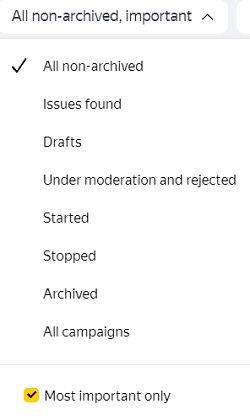
To view the list of important campaigns, open the filter by campaign status and choose Most important only.
How to launch or submit multiple campaigns for moderation
To stop, start, submit for moderation, copy, delete, archive, unarchive, add, or remove multiple campaigns from key campaigns:
- Select the campaigns from the list.
- Click Action and select the relevant action.
How to set a weekly budget for a campaign
Select the campaign and enter the amount in the Budget and strategy column.
How to view and change campaign settings
Click next to the campaign and select Edit.
How to see a list of all ad groups or ads in a campaign
Select the campaigns you need and click Groups or Ads in the menu above the list of campaigns.
How to see a list of all targeting criteria
Select the campaigns, then chose one of the following from the menu above the table: Bids and keywords, Retargeting and audiences, or User profiles.
Viewing statistics
How to track metrics on the campaign page
Create your own table with campaign data:
-
Add or remove columns using the menu **
**→ Campaign columns. To rearrange the columns, move the indicator to the desired location. -
Add statistics for goals to the data (if they're configured in Yandex Metrica). To do this, open the menu
→ Add and select the goals you need. -
To select the period for which you need statistics, click the Statistics for
campaigns button at the bottom.
How to open Report Wizard
Select the desired campaigns and click Campaign
Read more about the Report Wizard here.
Payment and setting up a shared account
How to top up the account
Under your username, click Top up. In the window that opens, specify the payment amount, select the method, and click Top up account.
Learn more about payment methods.
How to open shared account settings
Under your username, click the amount. In the window that opens, click All settings.
Learn more about shared accounts.
How to view and change the weekly budget
Under your username, click the amount. The window that opens displays your current limit in the Weekly account budget section. To adjust this amount, click Weekly account budget and specify your desired ad spending per calendar week.
Learn more about weekly budgets.
Keyword planner
The keyword planner helps you expand the set of keywords and negative keywords for your ad groups using Yandex search query statisticas from the Wordstat service.
To select keywords, click Add → Keywords in the left menu, then choose the campaign and ad group.
Learn more about the Keyword planner.
Find and replace
The find and replace tool lets you quickly edit multiple keywords in different campaigns and groups at once (for example, fix a typo).
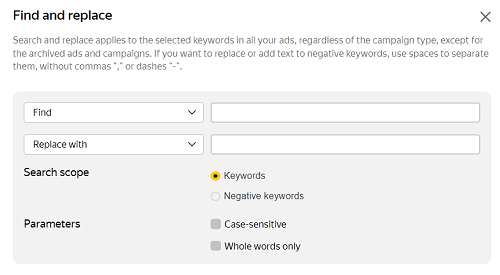
To replace keywords, select them in the Bids and keywords tab and click Find and replace or Actions → Find and replace.
Learn more about find and replace.
Setting bids
You can quickly set bids for search:
-
For the entire campaign.
-
For a large number of keywords, even if they belong to different campaigns or ad groups.
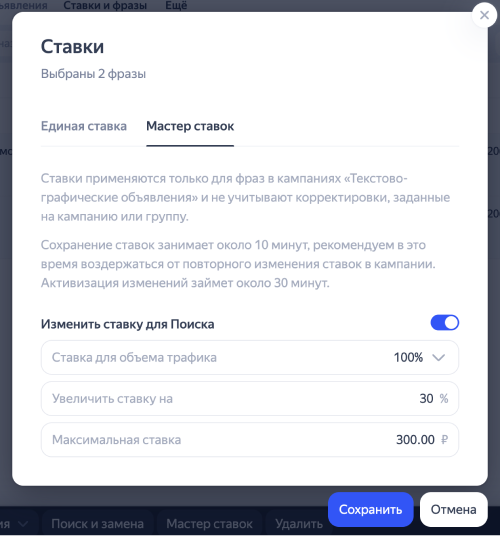
For the entire campaign.
Click next to the campaign and choose Bid Wizard.
For keywords
Select the campaigns and ad groups. In the Bids and keywords tab, select keywords and click Bid Wizard.
Learn more about setting bids.
Recommendations
Recommendations suggest how you can adjust campaigns in order to get more clicks and conversions. Yandex Direct will analyze your campaign data and provide personalized tips for how to improve the campaign's performance. Follow the recommendations and monitor the results.
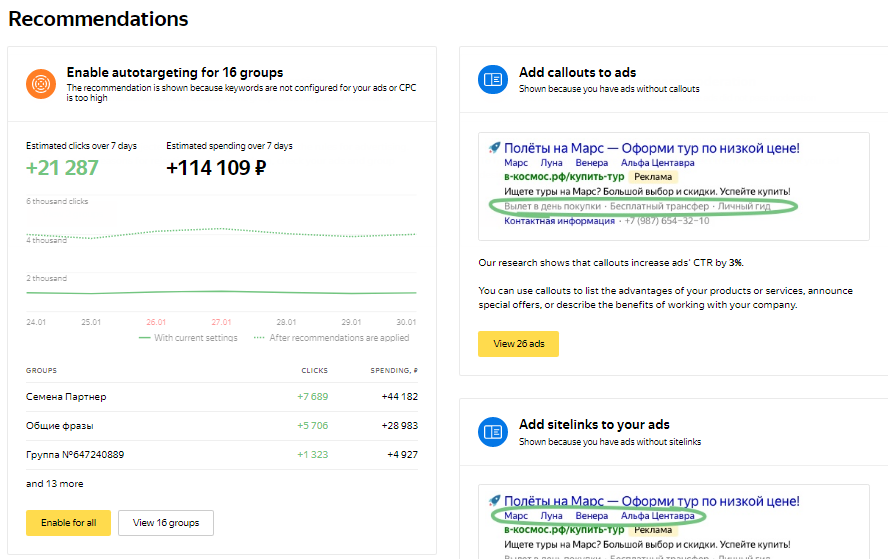
To see recommendations from Yandex Direct, click Recommendations in the side menu.
Learn more about recommendations.
Campaign statuses
|
Status |
Meaning |
What to do next |
|
Draft |
The campaign has been created but has not yet been submitted for moderation. |
Submit your campaign for moderation. |
|
Under moderation |
The campaign has been submitted for compliance review. |
Wait for the review to finish — the results will be sent to the email address you provided at the time of registration. |
|
Campaign in progress |
The campaign has started, ads are being served. |
|
|
Ads not served |
The account has no funds, or the campaign has not passed moderation. |
Top up your account or make sure that your ads meet the moderation rules:
|
|
Processing |
An intermediate status that may appear during actions that affect the status — for example, archiving and unarchiving. |
Wait until processing is completed. |
|
Activating |
The changes are being applied. |
Wait for activation to complete. |
|
Suspended |
Possible reasons:
|
|
|
Stopped |
The campaign or all ad groups in it have been manually stopped. |
|
|
Archived |
The campaign has been archived by the user or automatically. |
|
|
Issues detected |
Some ad impressions are restricted. |
Make sure that your ads meet the moderation rules:
|
|
Impressions stopped due to the lack of data for the ad labeling law |
An agency client gets this status if their ad labeling data is not filled out. |
Fill in the data to label ads with. |
Statuses can be combined, for example: “Running impressions, activating”.
Have questions?
Alert
Our customer support can only assist you with campaigns linked to the username you are contacting us from. You can check your username by opening ya.ru in another browser tab. Our team can access your data only when processing your request.
Scan the QR code or tap it to follow the link.


If you select Telegram or WhatsApp, keep in mind that Yandex does not control and is not liable for how third-party messengers store your data and chat history.