Витрина магазина на Маркете
This page is outdated. If you have any questions about this section, please contact your manager.
У каждого магазина на Маркете есть витрина — страница со всеми товарами, которые он продает на маркетплейсе. Она выглядит так:

Витрину можно использовать просто как сайт — давать на нее ссылки покупателям и продвигать рекламой.
Посетители Маркета попадают на витрину, когда нажимают на название магазина на странице товара.
Вы можете настроить внешний вид и содержание своей витрины, чтобы сделать ее более привлекательной, информативной или просто необычной.
Узнать, как часто покупатели посещают витрину магазина и смотрят ваши товары, можно с помощью Яндекс Метрики — настраивать ничего не потребуется. Подробнее о том, какую информацию показывает Метрика, читайте в статье Продвижение на внешних сайтах.
Как открыть конструктор витрины
Доступ к конструктору есть у администраторов кабинета.
- Откройте сводку в кабинете и выберите нужный магазин.
- Выберите Продвижение → Витрина магазина.
Витрина магазина состоит из вывески, баннеров и подборок ваших товаров — вы сами решаете, какие из них показывать покупателям.
Как настроить вывеску
Над витриной находится вывеска c названием магазина и — если вы захотите — его логотипом.
Первым делом выберите для вывески цвет из предложенного набора.
Если логотип на вывеске не нужен, сразу переходите к настройке товаров и подборок. Над витриной будет просто название магазина из настроек кабинета. Это будет выглядеть так:

Чуть больше времени займет настройка шапки с логотипом.
Если ваш логотип включает в себя нарисованное название магазина, на витрине можно разместить просто его:

Если ваш логотип — это символ без текста, обязательно пририсуйте к нему название любым шрифтом, чтобы получилось так:

Чтобы добавить логотип (с подписью или без), перейдите на вкладку Логотипом и загрузите его. Вам понадобится файл, соответствующий техническим требованиям и ряду правил.
Технические требования следующие:
- SVG или PNG размером 216 × 750 точек.
- Прозрачный фон.
- Логотип должен занимать большую часть площади изображения, текст — быть крупным и легко читаемым.
- Логотип и текст должны быть хорошо видны на выбранном вами фоне.
- Если вы выбрали для вывески черный фон, используйте исключительно белый цвет.
Правила для логотипа
Название магазина на логотипе может быть короче полного официального названия на Маркете, но должно оставаться узнаваемым. Например, если магазин называется «Гастроном „Вкусные продукты“», можно написать на вывеске «Вкусные продукты», но нельзя просто «Гастроном» или «Продукты».
Логотип — это буквенный или визуальный символ вашего магазина. В качестве логотипа нельзя использовать обычные фотографии и скриншоты.
Маркет отклонит вывеску, если название будет написано с ошибками или неразборчиво.
Не допускаются:
- жаргонные, грубые, бранные слова;
- антиреклама других брендов и вообще их упоминание;
- мимикрия под чужие бренды;
- изображения и надписи 18+;
- сравнение товаров и брендов;
- размещение контактов магазина или призывов их отыскать самостоятельно;
- адреса сайтов, если только адрес не является официальным названием;
- размещение персональных данных;
- политическая реклама и упоминание или изображение политиков;
- иностранный текст и бессмысленные сочетания символов;
- использование бренда Яндекса и его сервисов, в том числе Маркета.
Как настроить товары и подборки
Настроив шапку, выберите товары и добавьте подборки с товарами. Выберите подборки, которые хотите показывать покупателям на витрине, нажмите Показать и переходите к их настройке.
Типы подборок
Карусель баннеров
Выглядит так:


Отлично подходит, чтобы крупно написать название вашего магазина, объявить о выгодной акции, рассказать о преимуществах конкретного товара или задать настроение всей витрине. Не забудьте, что логотип магазина на странице уже есть.
Чтобы быстро создать баннер подходящего формата, воспользуйтесь специальным конструктором.
Как это сделать
1. Авторизуйтесь в редакторе Figma или заведите новый аккаунт — это бесплатно.
2. Перейдите по ссылке на специальный конструктор баннеров.
3. Нажмите Try it out и выберите редактор Figma.
4. Укажите заголовок и подзаголовок баннера, выберите цвет фона.
Фон баннера не должен быть белым.
5. Выберите, к какой категории относится товар на баннере. Если это лекарство или БАД, Маркет добавит соответствующее предупреждение на баннер.
6. Загрузите изображение с указанными параметрами.
7. Расположите изображение на баннере, если нужно, добавьте другие элементы.
8. Нажмите Сделать баннер — конструктор сохранит изображение с получившимся баннером на ваш компьютер.
Как сделать баннер
-
Подготовьте картинку — например, с фотографией товара, о котором вы хотите рассказать на витрине.
Не размещайте важную информацию по краям баннера — они могут быть не видны, если окно браузера неширокое. Маркет рекомендует добавить отступы сверху и снизу минимум по 40 пикселей.
Размер в точках Сколько точек может обрезаться справа и слева Ширина зоны, видимой всегда 2880 × 744 822 1236 Если вы дизайнер, ориентируйтесь на таблицу под катом
Создайте баннер с размерами 1440 × 372. Контент будет располагаться по центру в области с размером 618 × 332.

Контент за пределами этой области будет обрезаться — на мобильной версии сайта или при низком разрешении экрана.
При экспорте выбирайте ×2, чтобы баннер подходил для экранов с высокой плотностью пикселей.
Если вы хотите написать на баннере текст, используйте шрифт Yandex Sans. Обратите внимание на правила для контента.
-
Добавьте ссылку на страницу вашего предложения по инструкции.
Разделы магазина
Выглядит так:
Этим типом подборок стоит пользоваться, если у вас очень много товаров и вы хотите упростить покупателям навигацию. Иконки будут показываться в выбранном порядке и вести покупателей по ссылкам, которые вы добавите.
Обратите внимание: можно настроить от 4 до 8 разделов.
Правила
- Однородный (но не белый и не прозрачный) фон, контрастирующий с изображением товара.
- Единый стиль изображений.
- Все изображения должны быть разными.
- Нужный товар или тип товара должен находиться в фокусе.
- Подпись должна соответствовать товару на изображении.
- Для товаров 18+ нельзя использовать изображения с предметами анатомической формы.
Можно:
- использовать фото товара на модели;
- использовать изображение части товара, если товар при этом остается узнаваемым.
Товары со скидками
Выглядит так:
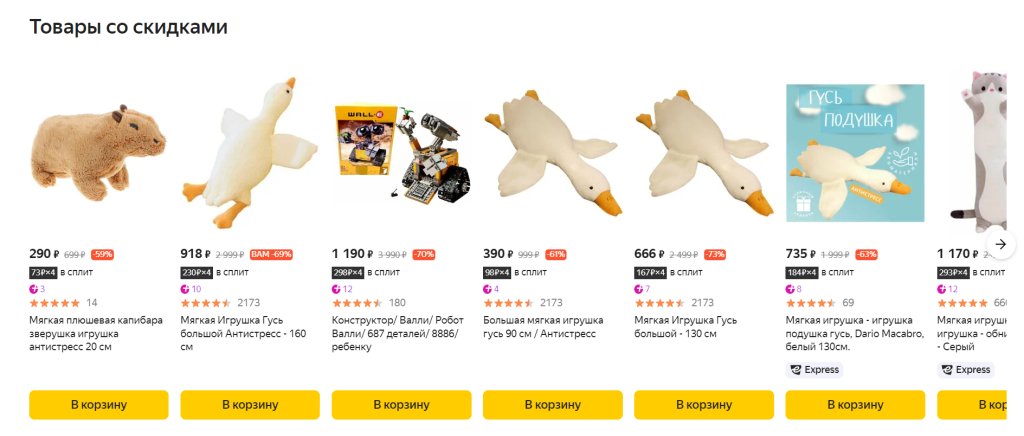
Такая подборка позволяет отдельно вывести товары со скидками или с кешбэком баллами. Формируется автоматически.
Все товары магазина
Выглядит так:
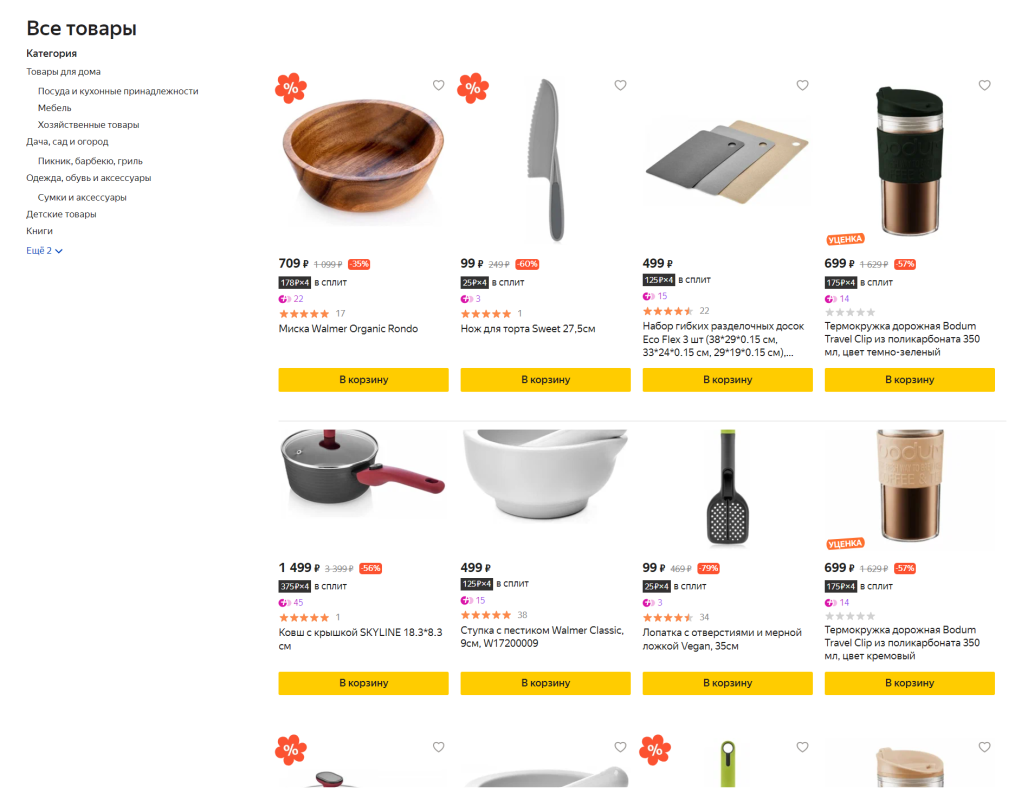
Товары отсортированы по популярности. Эта подборка всегда есть и всегда закреплена внизу.
Как получить ссылку для баннера
Баннеры витрины могут вести на любые страницы сайта market.yandex.ru.
Если нужна ссылка на товар
1. Откройте свою витрину — ссылка есть на странице конструктора.
2. Найдите нужный товар на витрине: поиском по магазину или через каталог.
3. Скопируйте адрес из адресной строки браузера.
Ссылки могут быть двух видов:
-
либо начинаться с
market.yandex.ru/business;
https://market.yandex.ru/business--ukrasheniia-iz-kamnei/8117995 -
либо содержать параметр
businessId=ХХХ, гдеХХХ— ID вашего бизнеса.
https://market.yandex.ru/catalog--braslety/51444988/list?hid=1634396&businessId=8117995
Если нужна ссылка на группу товаров
Баннер может вести на любую группу товаров, которую можно задать фильтрами поисковой выдачи Маркета.
1. Откройте свою витрину.
2. Перейдите на вкладку Каталог и выберите нужную категорию или воспользуйтесь поиском.
3. Настройте фильтры так, чтобы отображалась нужная группа товаров.
4. Скопируйте адрес из адресной строки браузера.
Как опубликовать витрину
Публиковать вывеску и наполнение витрины можно независимо друг от друга.
Когда всё будет готово, нажмите на кнопки Опубликовать вывеску и Опубликовать изменения. Сотрудники Маркета проверят витрину в течение нескольких часов и, если все в порядке, опубликуют ее.
Если витрина не пройдет проверку, сообщение об этом появится в конструкторе.
Чтобы пройти проверку, следуйте правилам
- Пишите грамотно, не используйте жаргон и грубости. Не размещайте на витрине бессмысленный набор слов.
- Не оскорбляйте и не дискредитируйте конкурентов.
- Не называйте свой магазин и свой товар самым лучшим, номером один и так далее.
- Не прибегайте к сравнению товаров или брендов, чтобы выставить в заведомо невыгодном свете один из них.
- Некоторые тематики для витрины не подходят, а именно: оружие, наркотики, рецептурные лекарства, табак, веселящий газ и БАДы. Нельзя изображать детей и людей в медицинской одежде.
- Не упоминайте на витрине бренды Яндекс и Яндекс Маркет — они и так на ней присутствуют.
- Не указывайте контактную информацию магазина — почту, адрес, сайт, телефон директора и так далее. И, пожалуйста, не призывайте покупателей находить эти сведения самостоятельно в обход Маркета.
- На витрине не должно быть контента для взрослых. Если ваш магазин — секс-шоп, придется обойтись без подробностей. Исходите из того, что витрину могут увидеть дети.
- Для витрины не подойдет любой контент, вызывающий ассоциации с политикой.
Убедитесь, что ваши материалы не нарушают требований федерального закона о рекламе. Помните: витрина — это ваш контент, и вы за него отвечаете.
Маркет может отклонить обновление витрины без уточнения причин.