Overlay ᵝ
Overlay is an ad unit that appears on top of the page on mobile devices and covers part of the screen while keeping the rest of the content visible. This format helps draw attention to the ad without covering the entire page.
The ad unit displays after the page loads and stays fixed to the bottom of the screen on top of the site content. Users can close it at any time once the close button appears.
Note
Beta version. This format is currently in beta and supported only for mobile devices.
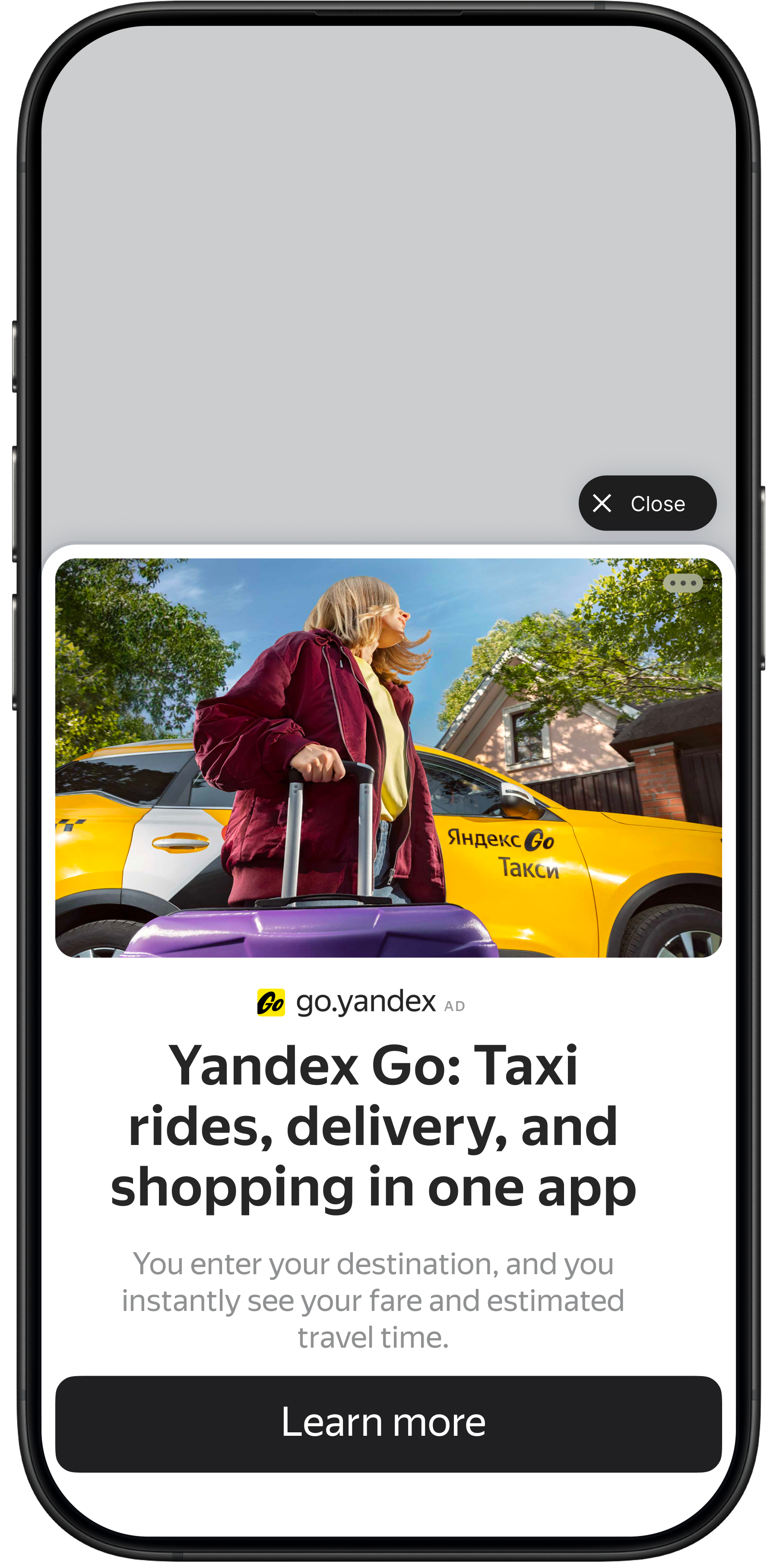
Available ad formats
The following ad formats can be displayed in the Overlay unit:
- Combinatorial ads in the Adaptive format.
- Display ads: They are selected automatically and occupy the maximum unit area. The aspect ratio of display ads is close to the size of the user's screen.
- Video ads.
How to create an Overlay unit
-
In the Yandex Advertising Network interface, go to Website Ads → Ad units and click New ad unit.
-
Select the site that you want to create an ad unit for and click More.
Note
Keep in mind that this format is only available for mobile versions of sites.
-
Select Overlay ᵝ as the unit type.
-
Enter a unit name to be used in the Yandex Advertising Network interface.
-
Select a CPM strategy:
-
Maximum revenue: Determine the minimum cost of impressions automatically. With this option, you can effectively fill placements and maximize revenue for the site owner.
-
CPMV threshold: Set your own minimum cost per thousand impressions based on a viewability check. The CPMV floor can be set in rubles, US dollars, or euros. You can change the floor currency in your account settings.
Alert
Setting a CPMV floor can reduce the unit fill rate and, therefore, decrease your income.
-
-
Configure the unit display settings:
Parameter
Description
Size
The size of the ad unit:
- Compact: The ad unit takes up about 45% of the screen height.
- Standard: The ad unit takes up about 60% of the screen height (recommended).
- Large: The ad unit takes up about 75% of the screen height.
Background Overlay
Use this to dim the page behind the ad unit to make the creative stand out.
Impression limit and Restriction period
-
Impression limit: Specify the maximum number of impressions for a unique user (from 1 to 3).
-
Restriction period: Set the period during which the unit can be displayed the maximum number of times.
For example, if you want the unit to appear no more than 1 time per hour, select 1 in the Impression limit field and select 1 hour in the Restriction period field.
Alert
For periods of 5 and 10 minutes, the impression limit can't be more than 1.
We recommend that you don't show this ad unit too often, as it may distract users from your site content.
Close button delay
The time delay before the close button appears. Users can only close the ad unit after the specified time has passed.
By default, this is set to 0 sec (the close button appears immediately). You can set a delay of 1 to 3 seconds before the button appears.
If you delay the close button, keep an eye on user reaction: delays can draw attention away from your site content and affect the user experience.
Close ad after timer expires
This parameter specifies whether the ad creative closes automatically after a set amount of time:
- Auto: Video ads close 10 seconds after playback ends. All other formats close 10 seconds after being served.
- Yes: Always close the ad after the timer expires.
- No: Don't close the ad automatically after the timer expires.
Theme
Choose a theme: Dark or Light. The default option is Light theme. Dark theme units have a different background and color scheme for their text, border, buttons, and other elements. The selected theme applies to all ad formats within the unit.
-
Choose how you want to configure ad formats:
-
Use standard settings to serve all available formats in the ad unit: combinatorial ads, display ads, and video ads. The design and display parameters are determined automatically.
-
Configure formats manually to disable specific ad formats or change their settings.
-
-
Click Create. A window with the ad tag will open. Use this ad tag to place the ad unit on your site.
Once you save the ad unit, it will be assigned a unique identifier (ID). It consists of a product ID (R-A), site ID (site_id), and the unit's serial number.
How to add an Overlay unit to your site
-
Get the ad tag: create a new unit or click Get code in the settings of an existing unit.
-
Copy the ad loader code to your clipboard and paste it into the
<head>of all pages where you want to show the Overlay unit. The loader code is only embedded on the page once and is used to call all Yandex Advertising Network units. -
Paste the ad unit code into the
<head>right after the loader code, or place it inside the<body>of the page.
Contact support
Write to WhatsApp
|
Scan the QR code. WhatsApp is a third-party channel for communication with Yandex. We do not control and are not liable for how WhatsApp stores your data and chat history. Please keep this in mind when choosing WhatsApp to contact support. |
WhatsApp is a third-party channel for communication with Yandex. We do not control and are not liable for how WhatsApp stores your data and chat history. Please keep this in mind when choosing WhatsApp to contact support.
Go to WhatsAppWrite to Telegram
|
Scan the QR code. Telegram is a third-party channel for communication with Yandex. We do not control and are not liable for how Telegram stores your data and chat history. Please keep this in mind when choosing Telegram to contact support. |
Telegram is a third-party channel for communication with Yandex. We do not control and are not liable for how Telegram stores your data and chat history. Please keep this in mind when choosing Telegram to contact support.
Go to TelegramYou can also go to

An impression is considered viewable if at least 50% of the unit area shows on the screen for at least two seconds.