Top Ad
Top Ad units are only shown on mobile devices. The ad unit appears on top of the site content at the bottom of the screen two seconds after the page is opened. The user can close the ad at any time.
Note
You can't show a Top Ad and a Floor Ad on the same page.
Available ad formats
An ad rendering container is created automatically whenever a page with a Top Ad unit is loaded:
-
The container width is equal to the length of the short side of the screen.
-
The height of the container is 50–100 pixels.
The Top Ad unit contains a predefined set of ad formats:
Adaptive combinatorial ads
The ad adapts to the container size and completely fills it.
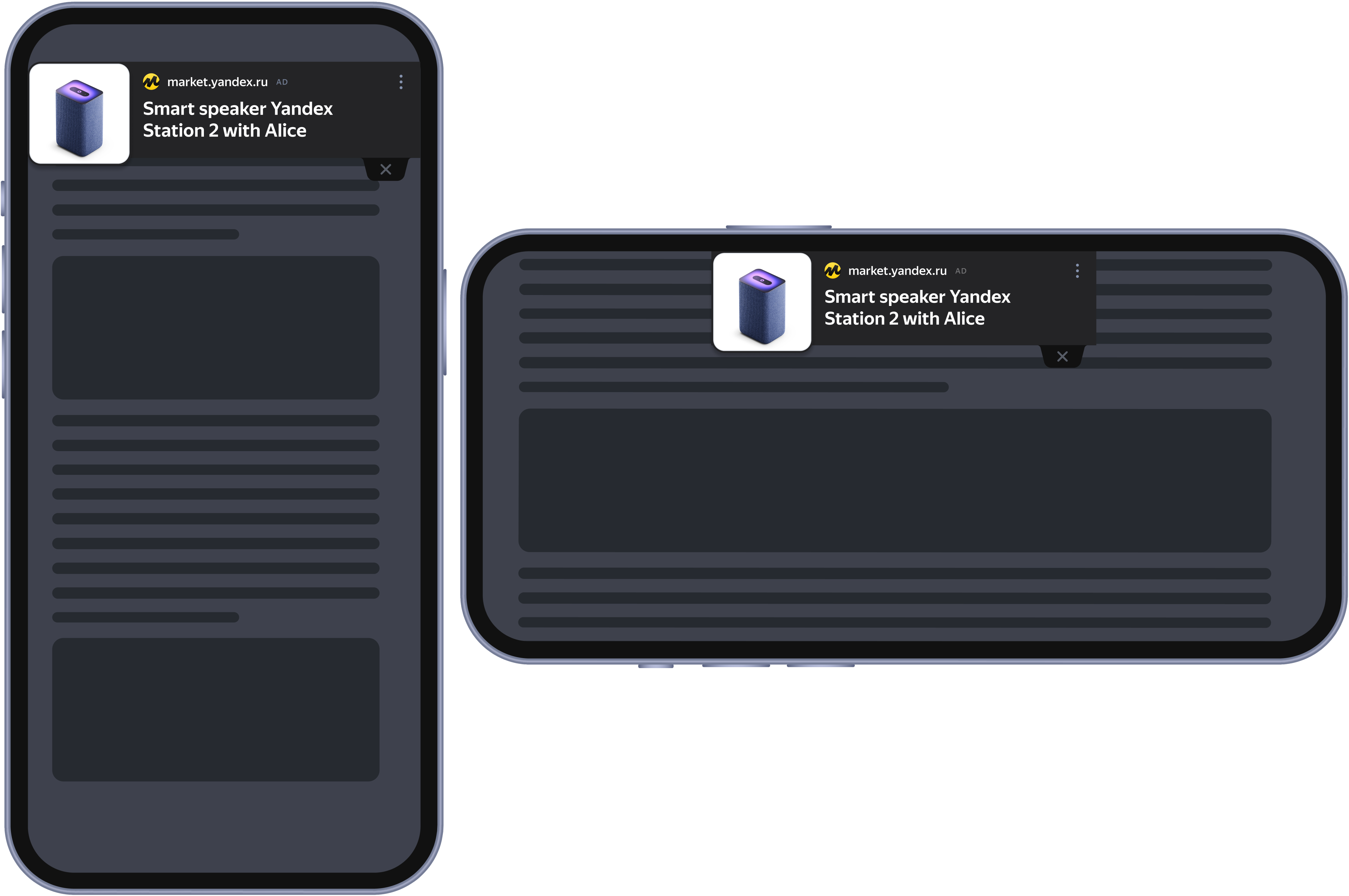
Sample Top Ad unit with an Adaptive SD ad (light theme)
The unit location in the vertical and horizontal orientation of the device:
Sample Top Ad unit with an Adaptive SD ad (dark theme)
The unit location in the vertical and horizontal orientation of the device:
Display ads
By default, a unit can display the following:
-
Fixed banners 320 × 50, 320 × 100 pixels.
-
Banners 100% × 90 pixels, where 100% is the width of the container.
-
Adaptive display ads that fully fit inside the container.
You can disable fixed formats in the ad unit settings.
How to create a Top Ad unit
-
In the Yandex Advertising Network interface, go to Websites Ads → Ad units and click New ad unit.
-
Select the site that you want to create an ad unit for and click Next.
-
Select the Top Ad unit type.
-
Enter a unit name to be used in the Yandex Advertising Network interface.
-
Set the CPM floor:
-
Maximum revenue: Determine the minimum cost of impressions automatically. With this option, you can effectively fill placements and maximize revenue for the site owner.
-
CPMV floor: Set your own minimum cost per thousand impressions based on a viewability check. The CPMV floor can be set in rubles, US dollars, or euros. You can change the floor currency in your account settings.
Alert
Setting a CPMV floor can reduce the unit fill rate and, therefore, decrease your income.
-
-
If necessary, specify the unit sizes: they will be applied to all formats within the unit. Select one of the options:
-
Adaptive: The unit size is limited only by the size of the framing container on the site. For Top Ad units, the container is created automatically:
-
The container width is equal to the length of the short side of the screen.
-
The height of the container is 50−100 pixels.
-
-
Adaptive with limitations: Enables you to set the maximum and minimum values for the unit height and width in pixels. In that case, when ads are selected, both the size of the container on the site and the limitations set in the Advertising Network interface are taken into account.
If the minimum value is not set, the ad for the desktop Floor Ad unit occupies 90 pixels in height and no more than the specified maximum value in width. These are the default values. For all other units: at least 40% of the container in height and 70% of the container in width.
- Fixed: Enables you to determine the exact unit size in pixels. The unit will only display ads of the specified size (provided that the unit size is smaller than the size of the container on the site).
Note
When selecting the Adaptive with limitations and Fixed sizes, take into account the size requirements for fixed display ad formats. To display these formats, the unit size must exactly match or exceed the size of the display banner.
For more information about the size requirements depending on the ad format, see Configuring unit sizes.
-
-
If needed, you can adjust the frequency of serving the ad unit to unique users. By default, the option is set to Auto, which means that the ad unit will be shown every time the user opens the page. You can configure the impression frequency with these fields:
-
Impression limit: Specify the maximum number of impressions for a unique user (from 1 to 3).
-
Restriction period: Set the period during which the unit can be displayed the maximum number of times.
For example, if you want the unit to appear no more than 1 time per hour, select 1 in the Impression limit field and select 1 hour in the Restriction period field.
Alert
For periods of 5 and 10 minutes, the impression limit can't be more than 1.
-
-
Choose a theme: Dark or Light. The default option is Light theme. Dark theme units have a different background and color scheme for their text, border, buttons, and other elements. The selected theme is applied to all ad formats within the unit.
-
Choose how you want to configure ad formats:
-
Use standard settings: Selecting this option enables all available formats within the ad unit: combinatorial ads and display ads. The design of ads and impression parameters are determined automatically.
-
Configure the formats: With this option, you can see how the unit displays on screens of different sizes:
Base designDisplay adsThe main layout features Adaptive combinatorial ads. In the preview area, you can simulate how the unit is displayed on mobile devices of different sizes: to do this, fill in the Container size field. The ad adapts to the container size and completely fills it.
Display ads are served automatically based on the unit size.
You can't disable the format.
-
-
Click Create. A window with the ad tag will open. Use this ad tag to place the ad unit on your site.
Once you save the ad unit, it will be assigned a unique identifier (ID). It consists of a product ID (R-A), site ID (site_id), and the unit's serial number.
How to add a Top Ad unit to your site
-
Get the ad tag: create a new unit or click Get code in the settings of an existing unit.
-
Copy the Yandex Advertising Network loader code to the clipboard. Paste it inside the
<head>tag of the page where you want to display the unit. The loader code is only embedded on the page once and is used to call all Yandex Advertising Network units. -
You can add the unit code to
<head>immediately after the ad loader or in the<body>of the page.Alert
When placing a Feed on pages with a Top Ad or Floor Ad unit, make sure to configure the deletion of these units when the Feed becomes visible. The ad unit placement requirements prohibit displaying a Feed and a Top Ad or Floor Ad on the same screen.
You can't set the size of your Top Ad unit in the site layout. Even if you add the unit to a separate container, the height of this container will be ignored. You can only manage unit sizes using the Yandex Advertising Network interface.
Contact support
You can also go to

An impression is considered viewable if at least 50% of the unit area shows on the screen for at least two seconds.