Translating dialogs
Dialog mode lets you communicate with users who speak another language.
Note
Some devices may not support some of the languages listed below.
Supported languages
|
Azerbaijani English Amharic Arabic Armenian Burmese Bulgarian Hungarian Vietnamese Greek Georgian Danish Hebrew Indonesian Spanish Italian |
Icelandic Chinese Korean Khmer Lao Latvian Lithuanian Malay German Nepali Dutch Norwegian Farsi Polish Portuguese Romanian |
Russian Serbian Slovak Slovenian Tagalog Thai Turkish Ukrainian Finnish French Hindi Croatian Czech Swedish Estonian Japanese |
Note
Dialog mode requires an internet connection. It doesn't work offline.
To communicate in dialog mode, do the following:
-
Tap at the bottom of the screen.
-
Configure access permissions.
When launching dialog mode for the first time, the Allow access to microphone button appears. Tap it and select Allow in the pop-up window. If this window doesn't appear, it means you already allowed the app to access your mic.
-
Select the languages you and the other user will be communicating in.
Tap the language to change it.
-
To start, tap the microphone button next to your language and speak. The translation will appear on the screen.
The recording will stop automatically. To stop it manually, tap the button again.
Phrases in your native tongue are displayed in a smaller font, while phrases in the target language are displayed in a larger font. To swap languages, tap on the language selection screen.
|
|
|
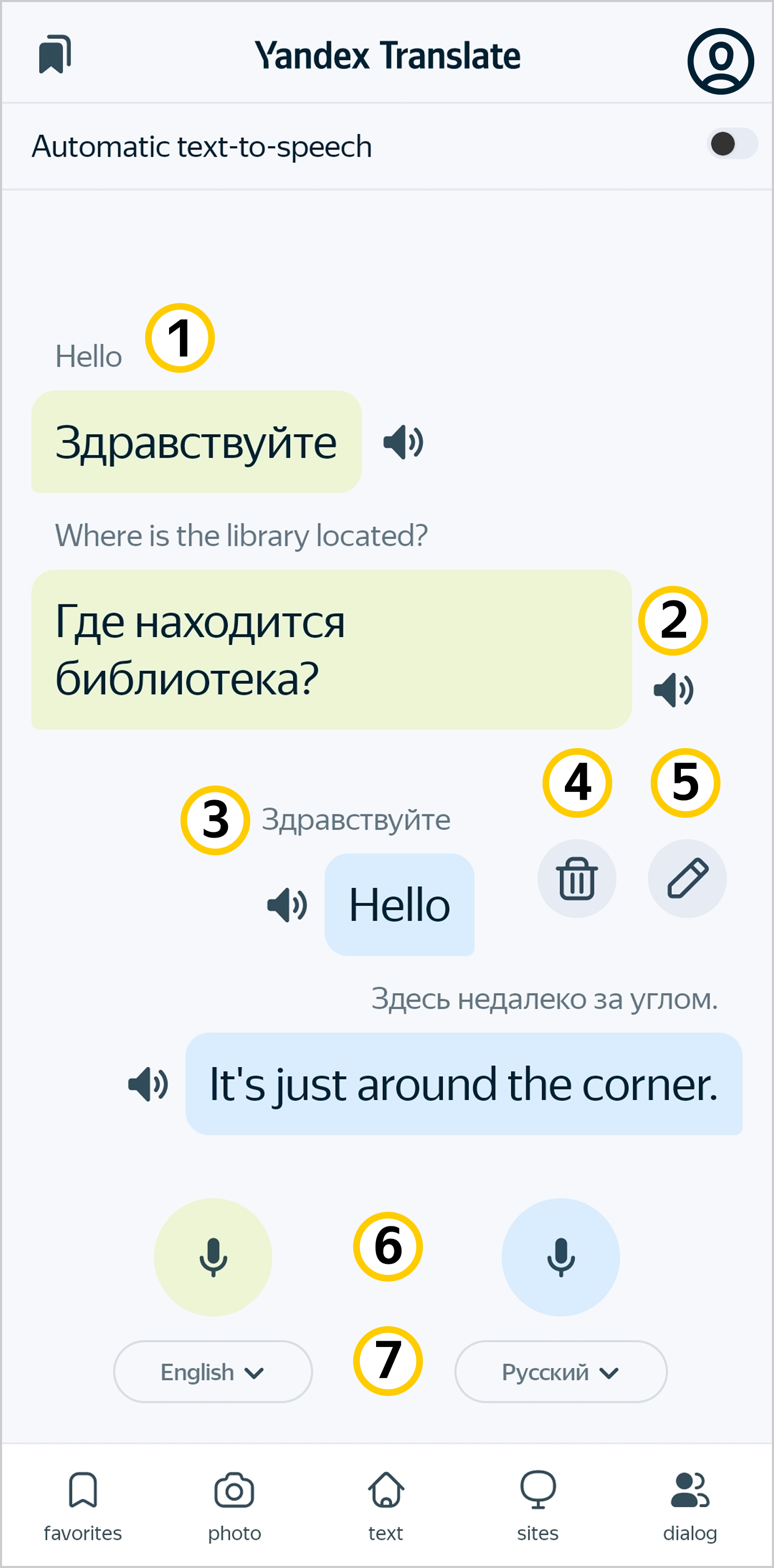
Here is what you can do with your phrases:
|
Action |
Execution sequence |
|
Use text-to-speech |
Tap next to the phrase you want to hear. The recording of the phrase will stop playing automatically. To stop it manually, tap the icon again. |
|
Change the original phrase |
Swipe the phrase to the left and tap . |
|
Delete a phrase |
Swipe the phrase to the left and tap . |
|
Delete dialog |
The Clear history button appears after you switch to another tab in Yandex Translate. |
Tips for using the dialog mode:
- Show the welcome screen to the person you're going to talk to and tell them how to use dialog mode.
- Tap the microphone button next to your language before saying each phrase.
- Speak in the selected language.
- Try to speak in short sentences.
- Speak loudly and in a steady voice, don't make long pauses.
- Hold the microphone close to the sound source.