Recommendation widget
The recommendation widget is a content page unit that can display ads or host links to your own content across multiple sites. It is available both on the desktop and mobile versions of the site. For more information, see Recommendation widget in the Yandex Advertising Network Help.
You can use the recommendation widget to set up automatic banner swapping, which lets you:
- Display your banners instead of recommendations on the selected positions.
- Replace all Yandex Advertising Network ads with your own banners if they have a higher CPM.
Limits
-
You can set up the banner for the recommendation widget only in Dynamic Monetization campaigns without external monetizers. These parameters are set when adding a campaign and can be edited after.
-
The Recommendation widget banner type isn't displayed in the list of predefined types in the Settings tab, but you can see it when creating a placement and adding banners.
-
The substitute banner inherits the CSS styles of the Yandex Advertising Network recommendation widget that's linked to the banner's placement.
-
Statistics on recommendations in the partner interface doesn't account for placements via Adfox. You can find these statistics in the Adfox Reports section.
Prepare for banner placement
-
Create a placement with a recommendation widget in one of the following ways:
From the Inventory tabFrom the Campaigns tab- Go to the Inventory tab in the main menu.
- Select the site and its section.
- Create a placement with the Recommendation widget banner type.
- Go to the Campaigns tab in the main menu.
- Select a Dynamic Monetization campaign without external monetizers and go to the Banners tab.
- Click Create and select the Display Advertising format, the Predefined banner type group, and the Recommendation widget banner type.
-
Open the Monetization section and go to the Recommendation widget tab.
-
In the YAN block ID column, click and select a placement. This will open a recommendation widget builder in the Yandex Advertising Network interface. For more information about parameters in the builder, see Creating and configuring a widget.
Note
You can't connect a previously created widget, so a new one is created at this step.
-
Enter the parameters and add an ad unit. It's linked to the site's placement after that, and you can create a substitute banner.
-
Get the ad tag for the recommendation widget from the site or placement level and install it in a container on your site page.
Place a banner
-
Open the Campaigns tab in the main menu, select a campaign, and go to the Banners tab.
-
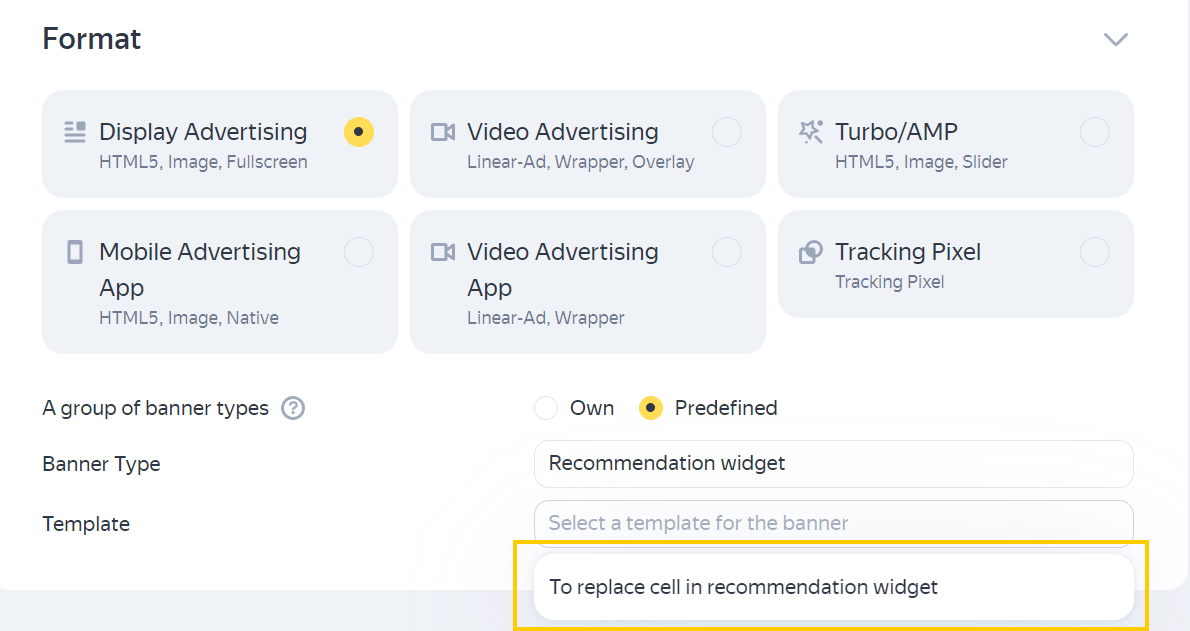
Click Create. Add a Recommendation widget banner and select the To replace the cell in the recommendation widget template.
-
Fill in the banner parameters with the title, description, advertiser's domain, and other elements to be displayed in the widget. The widget's appearance is customized in the Yandex Advertising Network partner interface.
-
If necessary, add links for banner measurement in third-party ad systems. After adding the banner, navigate to the Events tab and paste these links in the Transition URL field for the event that you're measuring.
The following events can be called in the template:
- **Viewable impression, Yandex (IMS)**: An impression is only counted if at least 50% of the banner area is in the active browser window for at least 2 seconds. [Learn more about viewability counting](../campaigns/impressions-method.md#viewability).- **Impression (IMS)**: An impression is counted when ad rendering begins.- **Viewable Impression (IMS)**: An impression is counted according to the criteria set out by international media standards, including the minimum percentage of pixels in the viewable area and the impression duration in the active browser tab. [Learn more about viewability counting](../campaigns/impressions-method.md#viewability).
Set up ad substitution
Actions at this stage depend on your goal:
In the banner parameters, specify the position number in the widget. The campaign CPM isn't accounted for when selecting banners with the specified position if there's no Yandex Advertising Network ad or a higher-priority banner on it.
If you don't specify the banner position, it becomes a candidate for replacing Yandex Advertising Network ads. This is described in more detail in the next scenario.
The cell position is calculated from the upper-left corner. In the example below, the third and fourth cells of the recommendation widget are allocated for ads. If the second position is set in the banner parameters, the banner takes this position, and the recommendation moves to the right cell along with others. If you specify a position that exceeds the number of cells in the widget, the banner isn't displayed.

One campaign may include multiple banners with different positions to be substituted in the widget. If the same campaign's banners complete for one position, a higher-priority banner is selected.
Warning
Check whether automatic placement of Yandex Advertising Network ads is enabled in the Design tab in the recommendation widget settings. With automatic ad placement enabled, the Adfox banner isn't displayed when it gets to the position with a Yandex Advertising Network ad in the widget.
If you don't specify a position in the banner parameters, it attempts to replace the ad cell of the recommendation widget Yandex Advertising Network. When the total CPM of ad campaigns with such banners is higher than the CPM of the Yandex Advertising Network recommendation widget, your banners replace all ad cells in the widget.
Warning
The number of campaigns with your banners mustn't be fewer than the number of ad positions in the recommendation widget ad unit, and only one substitute banner is selected from each campaign.
Get the ad tag
Get the ad tag from the site or placement level after adding a banner.